
VISA GIFT CARD + APPLE PAY
Your gift.
A tap away.
Bring your Visa gift card to your iPhone. Add it to Apple Wallet and use Apple Pay at eligible contactless checkouts.
Apple Pay T&Cs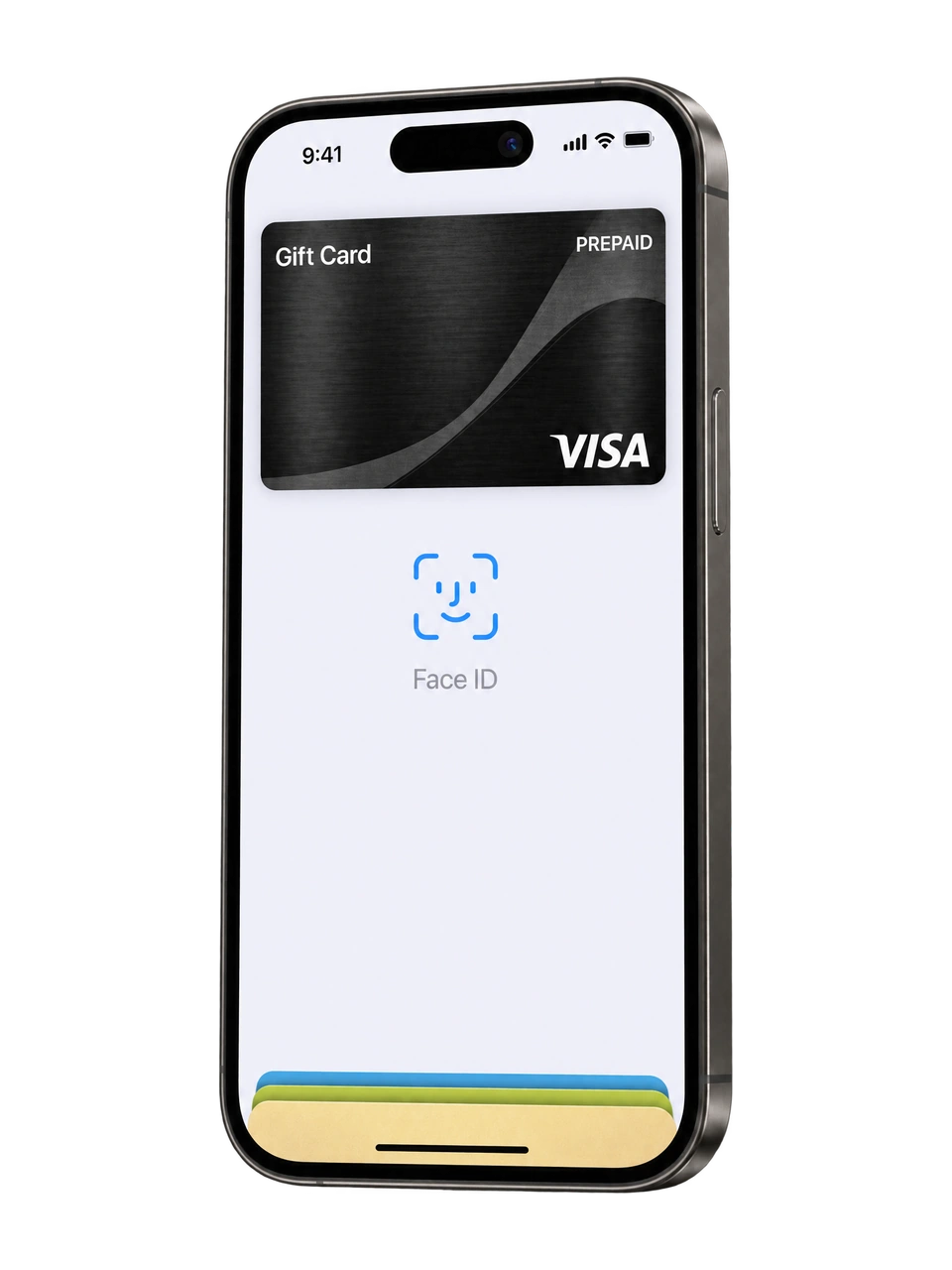
 Your card. In your wallet.
BEFORE YOU BEGIN
A few things to have handy.
A compatible iPhone, signed in to your Apple Account, with a passcode and current software. Have your card details and an internet connection ready.
ADD YOUR CARD
One wallet.
Two ways in.
Choose the type of gift card you have.
Add your physical card
No card registration required. You can add your physical card straight to your wallet.
Open your wallet
Open Wallet on your iPhone and tap the + button. Choose Debit or Credit Card, then Continue.
Enter your card details
Choose Enter Card Details Manually. Enter your gift card number, expiry date and security code.
Finish verification
Review the terms shown in your wallet and complete any verification requested. Wait until the wallet confirms your card is ready to pay.
Add your Digital Card
Start with the eGift email on your phone.
Open your eGift
Open the link in your gift email on your phone. Complete your eGift registration to access your Digital Card.
Choose Add to Wallet
Select Add to Wallet. The process will take you through My Card Wallet. Follow the instructions for Apple Pay on your device.
Complete the wallet prompts
Review the terms and complete any verification requested. If you prefer to add your card manually, open your wallet app and enter the card details using the manual setup instructions below.
Prefer to enter your card manually?
Open your wallet
Open Wallet on your iPhone and tap the + button. Choose Debit or Credit Card, then Continue.
Enter your card details
Choose Enter Card Details Manually. Enter your gift card number, expiry date and security code.
Finish verification
Review the terms shown in your wallet and complete any verification requested. Wait until the wallet confirms your card is ready to pay.
The labels in your app may vary by device and software version. View the official Apple Wallet setup guide ↗
AT THE CHECKOUT
A little tap.
Then on with your day.
Look for a contactless reader at an eligible retailer. Your gift card’s acceptance rules still apply when you pay with your phone.
Check card acceptance →Choose your gift card
Open Wallet and choose your Visa gift card. On an iPhone with Face ID, double-click the side button and authenticate. On a Touch ID iPhone, use Touch ID as prompted.
Hold near the reader
Hold the top of your iPhone near the contactless reader. Wait for confirmation on your device and the payment terminal.
Keep your receipt
Check the terminal confirms approval before leaving. Keep your receipt and retain your physical card or original eGift email for balance checks and any returns.
Do I need to register my card?
Your physical card does not require registration to use it or add it to a mobile wallet. Registration of your physical card is required if you raise a dispute. For a digital eGift, complete registration from your gift email first.
Why can’t I add my card?
Check the card number, expiry and security code, and make sure your device and wallet are supported. Complete any outstanding verification and update your wallet app. If the wallet still cannot add the card, contact cardholder support.
Apple Wallet setup help ↗Why was my payment declined?
Check your available balance and expiry, select the correct card in your wallet and confirm the merchant is eligible for your card. Your balance must cover the purchase unless the retailer supports a split payment.
Check your balance ↗Where can I use my card?
Use your wallet at contactless checkouts where your Visa gift card is accepted. Category cards remain limited to their eligible merchant categories.
Card acceptance guide →Should I keep my physical card?
Yes. Keep your physical card after adding it to your wallet. Its details are useful for checking your balance, shopping online and contacting support. Keep the original email for a digital eGift.
Does adding a card change my balance or expiry?
No. Your wallet uses the same gift card funds and expiry. Adding it to a wallet does not reload it or extend its validity. Check the current balance at Card Balance.
Compatible device and supported wallet required. Merchant and card restrictions apply. App screens and setup options can vary.
Visa gift card terms & conditions →